You cannot rely on a laptop clipboard image appearing inside Claude Code on a remote server. Save the image, upload it with scp, and give Claude Code the resulting remote path.
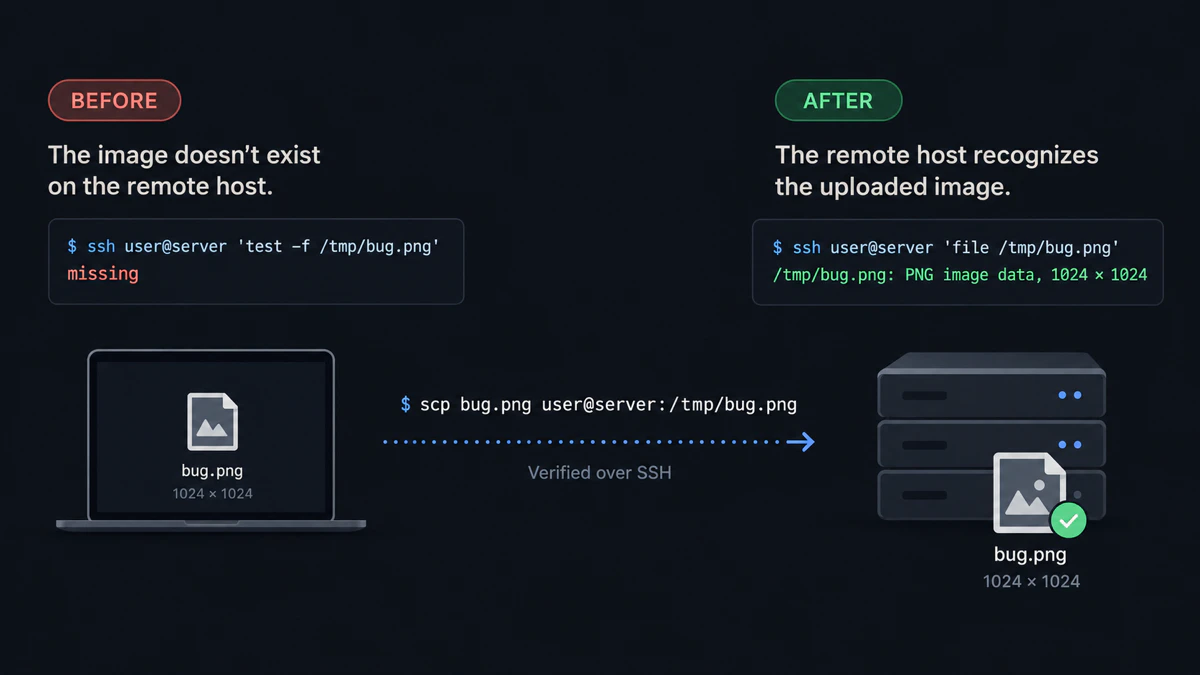
Visual summary of a real OpenSSH test: the remote path does not exist before upload; after scp, the host identifies a 1024×1024 PNG.
Why image paste fails over SSH
Claude Code runs where you launched claude. In an SSH session, that is the remote host, while the screenshot and clipboard remain on your laptop.
Clipboard behavior also varies by Claude Code version and terminal. Anthropic’s issue tracker documents a Ctrl+V regression over SSH in Claude Code 2.1.181 and a separate request for image-capable clipboard protocols on headless Linux. A remote file path avoids both clipboard paths.
Upload one image with scp
scp is the OpenSSH secure file-copy command. Run it on the machine that currently holds the screenshot.
macOS or Linux
scp ~/Desktop/bug.png user@server:/tmp/bug.pngExpected result: scp exits without an error and /tmp/bug.png exists on the server.
Windows through WSL
Windows drives appear under /mnt, so a screenshot in C:\Users\you\Pictures is available to WSL at /mnt/c/Users/you/Pictures. Microsoft documents this Windows-to-WSL path mapping.
scp /mnt/c/Users/you/Pictures/bug.png user@server:/tmp/bug.pngExpected result: the command finishes without an error and the file exists at /tmp/bug.png on the remote host.
Confirm the remote file
ssh user@server 'file /tmp/bug.png && ls -lh /tmp/bug.png'Expected result: file reports PNG image data and ls prints a non-zero file size.
Give Claude Code the remote path
Now tell Claude Code which remote file to inspect:
Look at /tmp/bug.png and tell me why the header is clipped.Expected result: Claude Code reads the image from the server instead of trying to read your laptop clipboard.
Stop repeating scp for every screenshot
The manual transfer above is enough for one image. For several saved images, copy multiple files with one scp command. If you regularly send screenshots or mix images with PDFs and recordings, install vmup, then follow the first SSH upload to turn those files into one remote folder and one pasteable prompt.
vmup --clipCopy each image, press Enter after each one, and type done when the batch is complete.
Expected result: vmup prints Agent folder: followed by one remote directory and copies a prompt containing that directory to the clipboard.
Remote-SSH drag and drop
If VS Code or Cursor is already connected to the remote workspace, drag the saved image into the remote Explorer. The editor uploads the file into the workspace; reference that remote file from Claude Code’s integrated terminal.
Expected result: the file appears in the remote Explorer and ls in the integrated terminal can see it.
Common failures
No such file or directory: the source path is wrong on the laptop, or the destination directory does not exist on the server.Permission denied: verify the same SSH user, key, host and port you use for an ordinary login.- A local path appears in the prompt:
/Users/…orC:\Users\…still points to the laptop. Use the remote/tmp/…or workspace path. - tmux changes the paste behavior: paste the remote path as text. Do not depend on tmux forwarding binary clipboard data.
For the exact clipboard error, see fix “No image found in clipboard” over SSH. For helper trade-offs, see Claude Code SSH screenshot tools compared.
Last tested with
- Manual transfer: macOS 26.6, OpenSSH 10.3p1, localhost SSH target, September 16, 2026
- Linux transfer: Ubuntu 26.04, OpenSSH 10.2p1, Lima VM to localhost SSH target
- Batch workflow: vmup 0.4.0
- WSL path form:
/mnt/c/...transfer executed under Ubuntu 26.04 and checked against Microsoft’s WSL documentation; native WSL was not available
Quick answers
Can I paste a screenshot into Claude Code over SSH? Do not depend on direct clipboard paste over SSH. Copy the image onto the remote host and give Claude Code the remote path.
Does SSH forward the clipboard for images? Plain SSH does not upload a clipboard image as a file. Some terminals and helpers implement separate clipboard protocols, but support varies by terminal and Claude Code version.
What is the fastest manual method for one screenshot?
Run scp bug.png user@server:/tmp/bug.png, then tell Claude Code to inspect /tmp/bug.png.
Can I drag an image into Claude Code over Remote-SSH? Drag the image into the remote Explorer first, then reference the uploaded remote path from Claude Code.
Does tmux make image paste less reliable? It adds another terminal and clipboard boundary. A remote file path is independent of tmux clipboard handling.
Disclosure: vmup is maintained by the author of this article. The manual scp method above is free, requires no vmup installation, and remains the recommended baseline for one file.